BigQuery is Google Cloud’s fully managed, serverless data warehouse that enables customers to store, process, and analyse large volumes of operational data quickly and securely using SQL.
Business Value
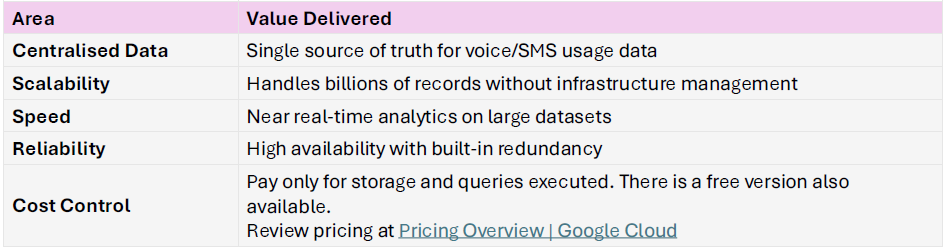
Creating Voice Data Warehouse
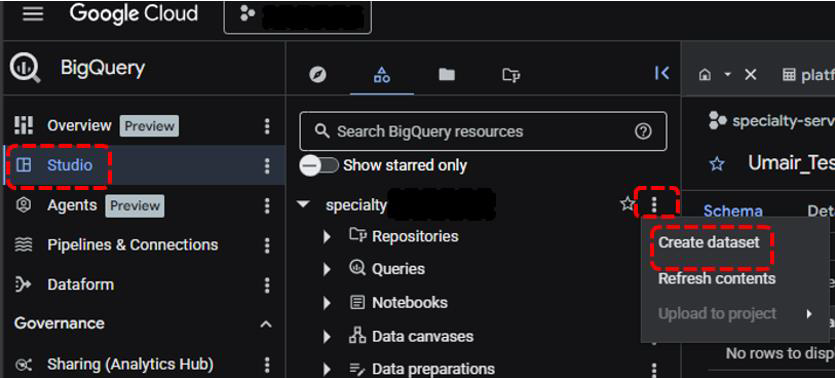
1.- Log in the Google BigQuery. Click on ‘Studio’ and ‘Create Dataset’
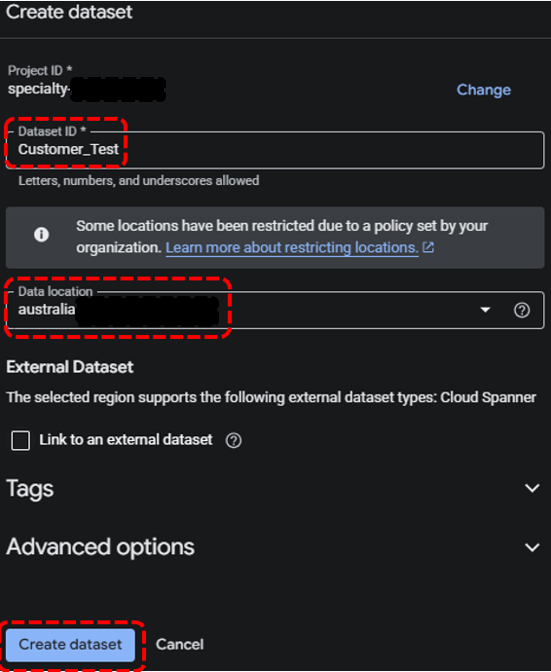
2.- Name the Dataset, select the Data location of your choice and click ‘Create Dataset’
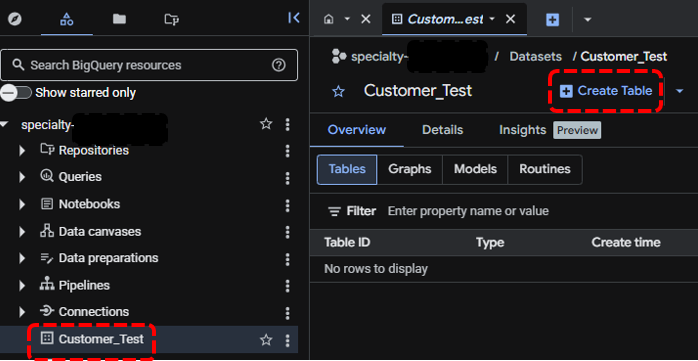
3.- Go to new dataset created, select ‘Create Table'
4.- Name your Table and toggle Schema to ‘Edit as Text’.
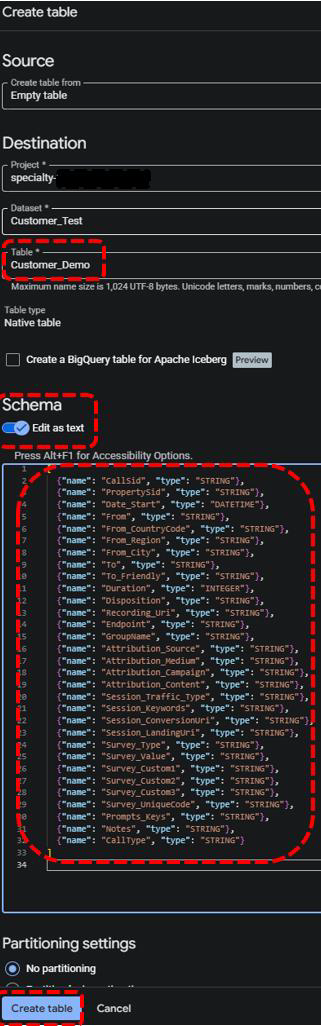
5.- Paste below schema and click ‘Create Table’:
[ {"name": "CallSid", "type": "STRING"},
{"name": "PropertySid", "type": "STRING"},
{"name": "Date_Start", "type": "DATETIME"},
{"name": "From", "type": "STRING"},
{"name": "From_CountryCode", "type": "STRING"},
{"name": "From_Region", "type": "STRING"},
{"name": "From_City", "type": "STRING"},
{"name": "To", "type": "STRING"},
{"name": "To_Friendly", "type": "STRING"},
{"name": "Duration", "type": "INTEGER"},
{"name": "Disposition", "type": "STRING"},
{"name": "Recording_Uri", "type": "STRING"},
{"name": "Endpoint", "type": "STRING"},
{"name": "GroupName", "type": "STRING"},
{"name": "Attribution_Source", "type": "STRING"},
{"name": "Attribution_Medium", "type": "STRING"},
{"name": "Attribution_Campaign", "type": "STRING"},
{"name": "Attribution_Content", "type": "STRING"},
{"name": "Session_Traffic_Type", "type": "STRING"},
{"name": "Session_Keywords", "type": "STRING"},
{"name": "Session_ConversionUri", "type": "STRING"},
{"name": "Session_LandingUri", "type": "STRING"},
{"name": "Survey_Type", "type": "STRING"},
{"name": "Survey_Value", "type": "STRING"},
{"name": "Survey_Custom1", "type": "STRING"},
{"name": "Survey_Custom2", "type": "STRING"},
{"name": "Survey_Custom3", "type": "STRING"},
{"name": "Survey_UniqueCode", "type": "STRING"},
{"name": "Prompts_Keys", "type": "STRING"},
{"name": "Notes", "type": "STRING"},
{"name": "CallType", "type": "STRING"}]
As a new table has been created under the Dataset, you click on it to see the schema has been assigned to the table.
Voice Data with this schema will be exported to this table from FDX using integration platform
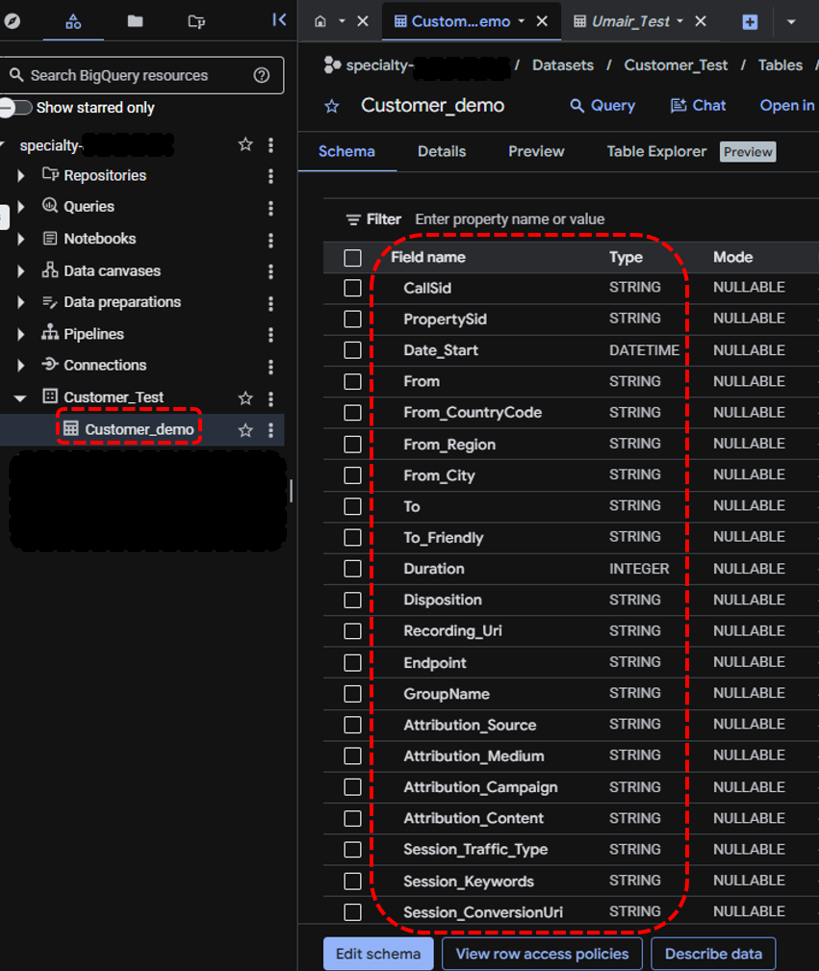
Now we will integrate FDX with Google BigQuery using integration platform. This will allow you to query inbound voice call data and export it to Bigquery
6.- Log in the FDX platform
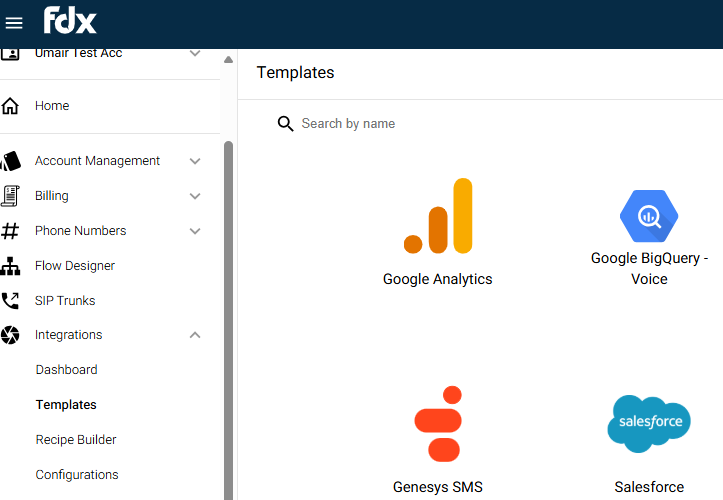
7.- Click on ‘Templates’ and download ‘Google BigQuery – Voice’ template
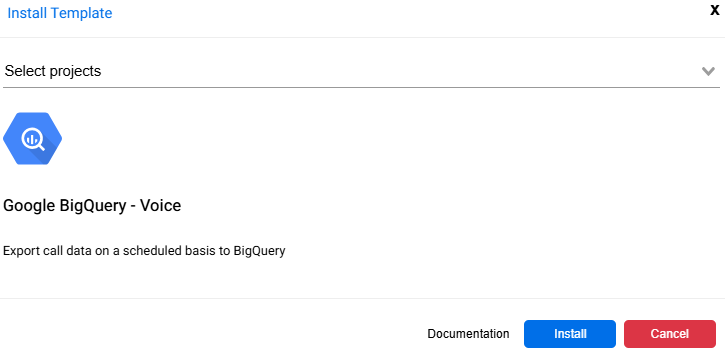
8.- Select the project in which you want to download the template and click ‘Install’
9.- Click on ‘Assets’
10.- Click on the ‘Voice to BigQuery’ recipe
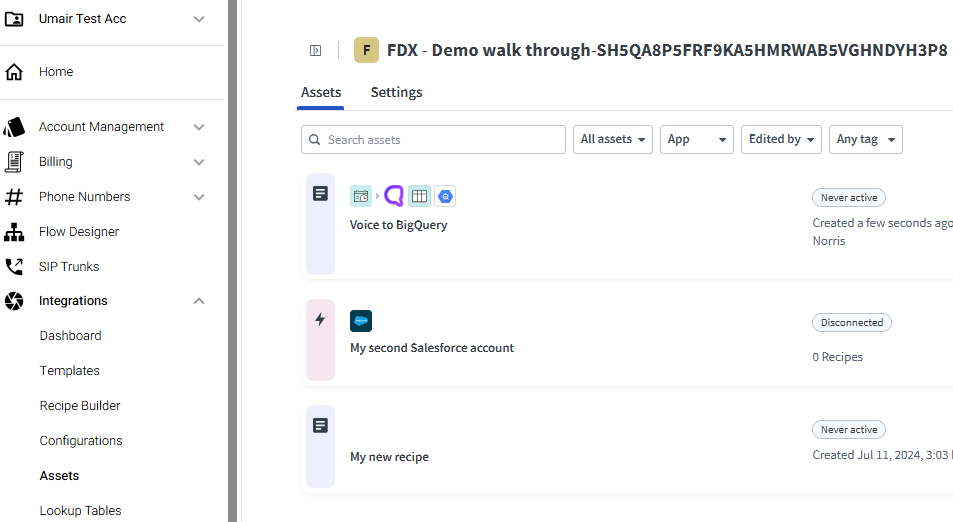
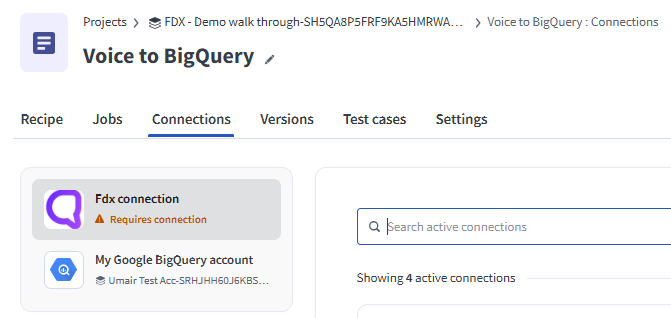
11.- Click on ‘Connections’ to connect the FDX and Google BigQuery connectors to the recipe
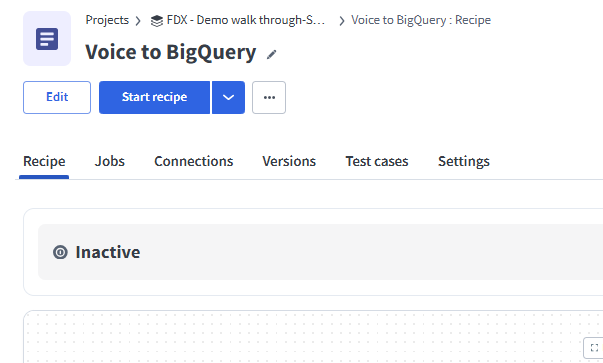
12 Click on ‘Recipe’ & then ‘Edit’ to update the recipe
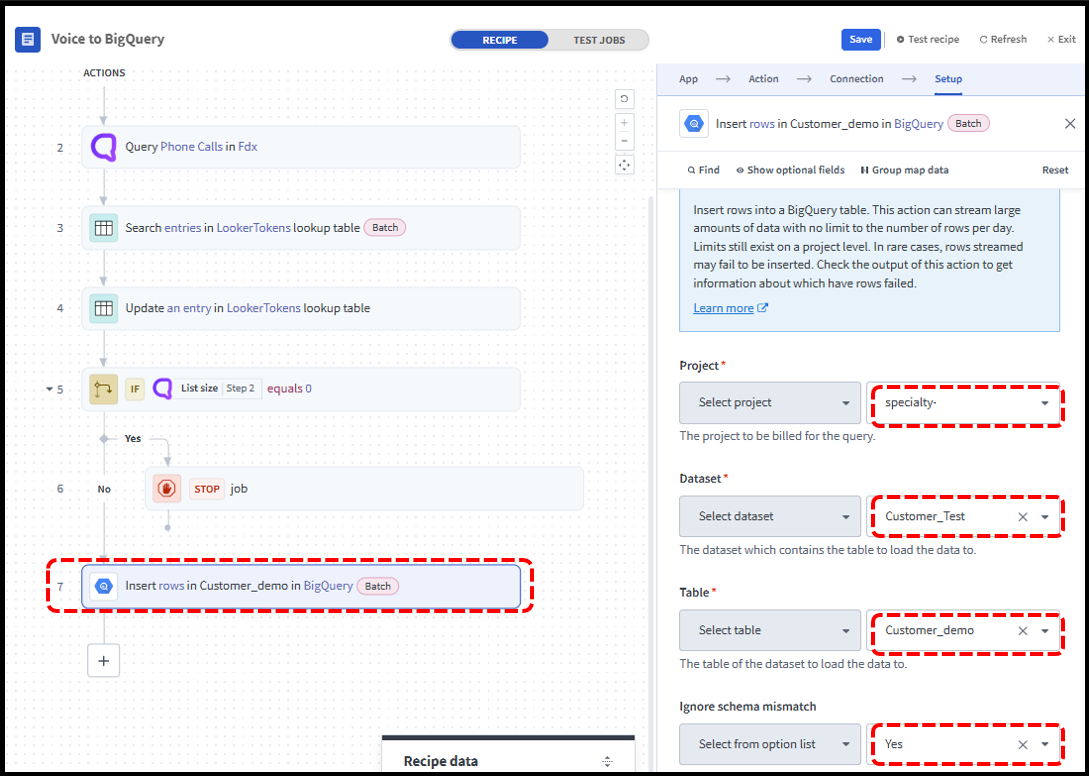
13.- Click Step-7 of the recipe and select the correct ‘Project’, ‘Dataset’ & ‘Table’ created in BigQuery. Set ‘Yes’ in ‘Ignore Schema Mismatch’
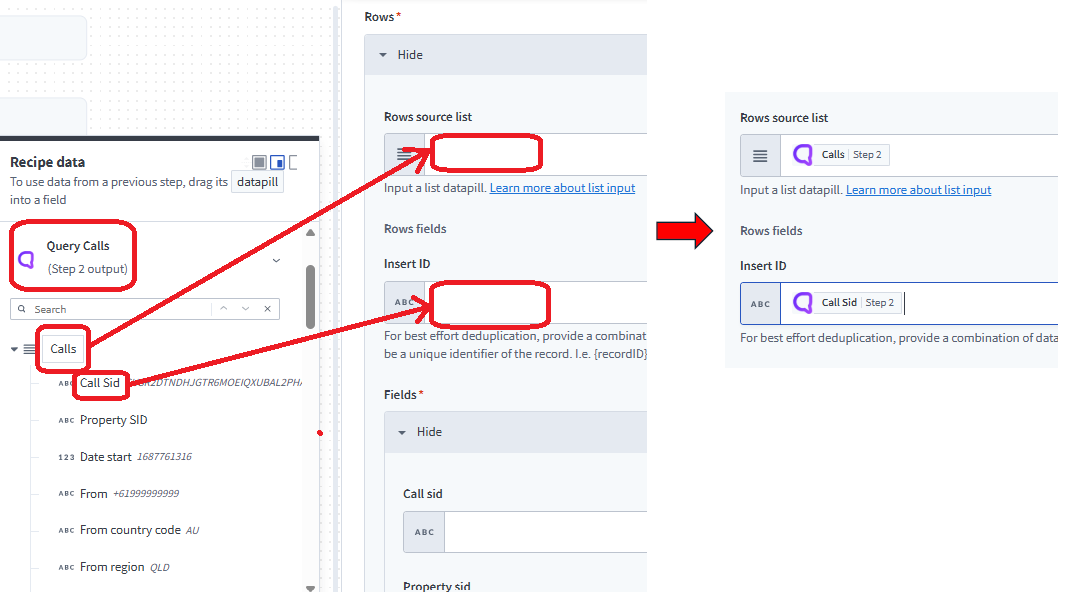
14.- Scroll down in the setup and click on ‘Rows Source List’. It will open up the Recipe Data. Click on ‘Query Calls’ and drag ‘Calls’ to ‘Rows Source List’ box
15.- Similarly, drag the ‘Call Sid’ to ‘Insert ID’
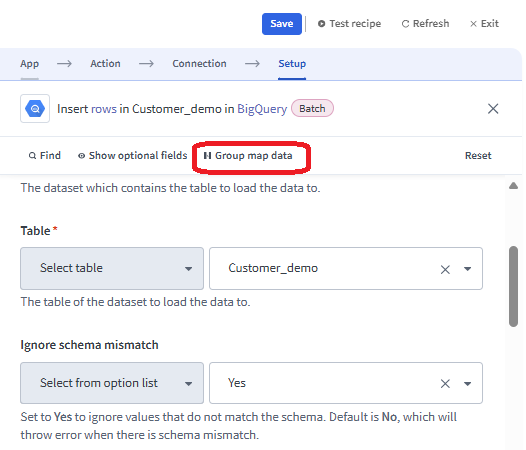
16.- Click on ‘Group Map Data’ at the top of the Setup
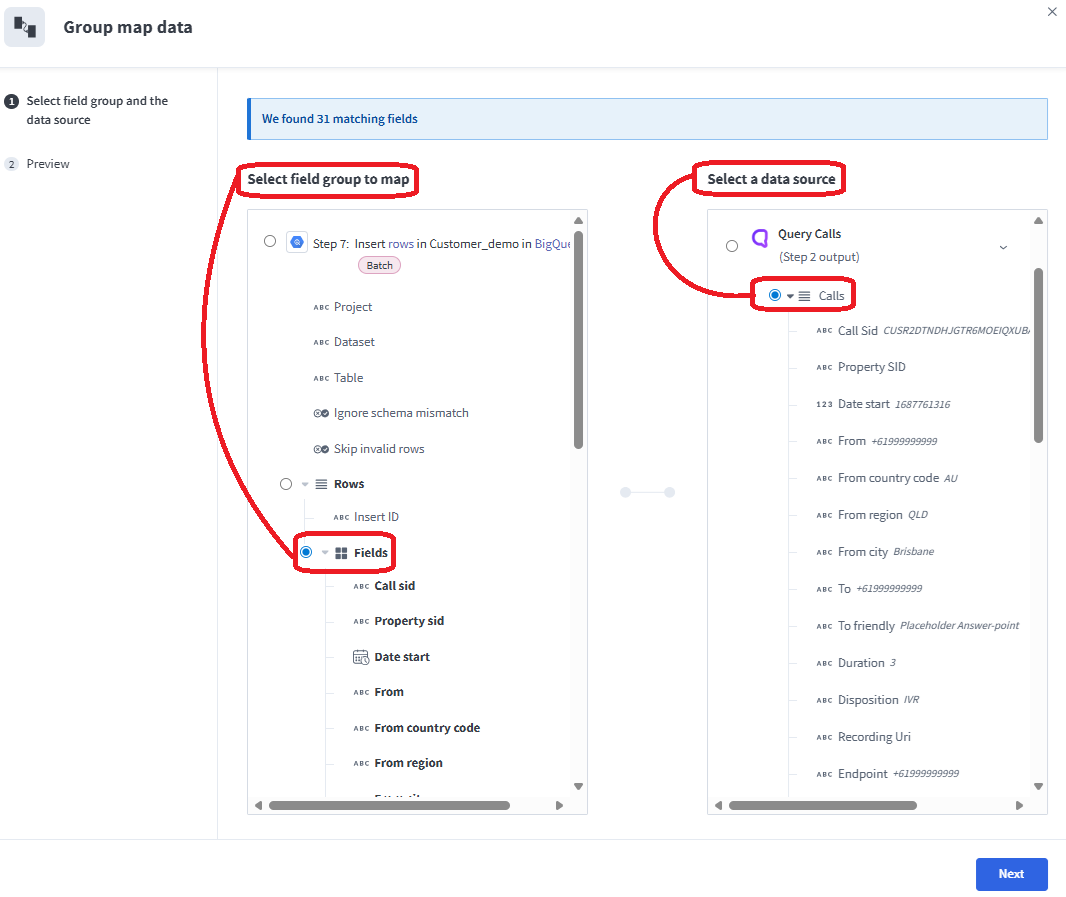
17.- In this step, we will match the FDX voice data to Schema in BigQuery.
Under ‘Select Field Group to Map’ on the left-hand side, select the ‘Fields’ and select ‘Calls’ under ‘Select Data Source’ on the right-hand side.
18.- Click ‘Next’
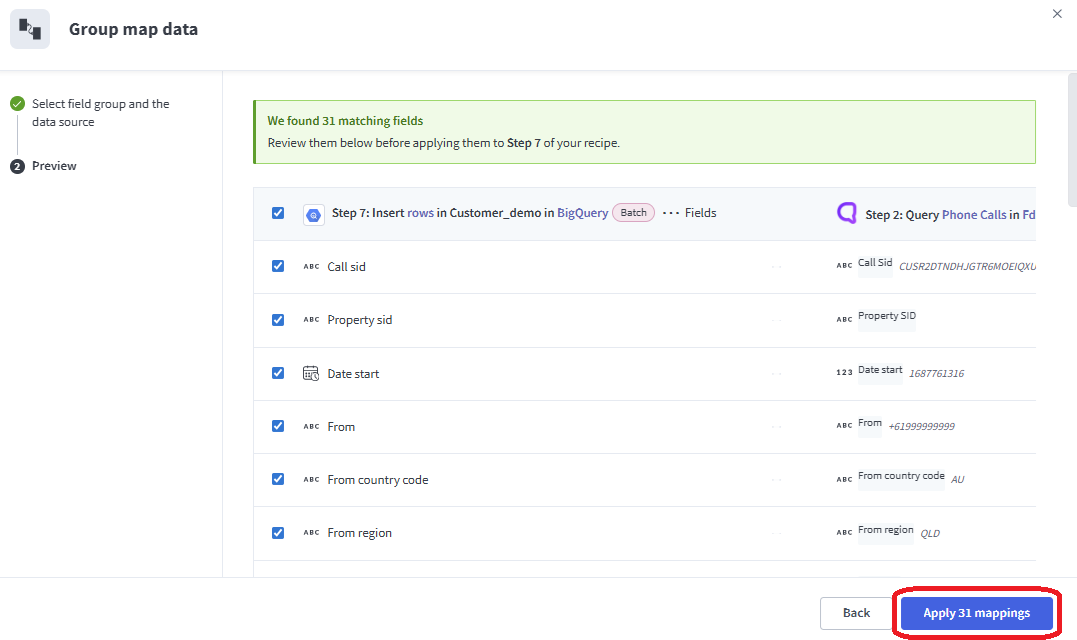
19.- Click on ‘Apply mappings’ to match the data to the source in the Fields
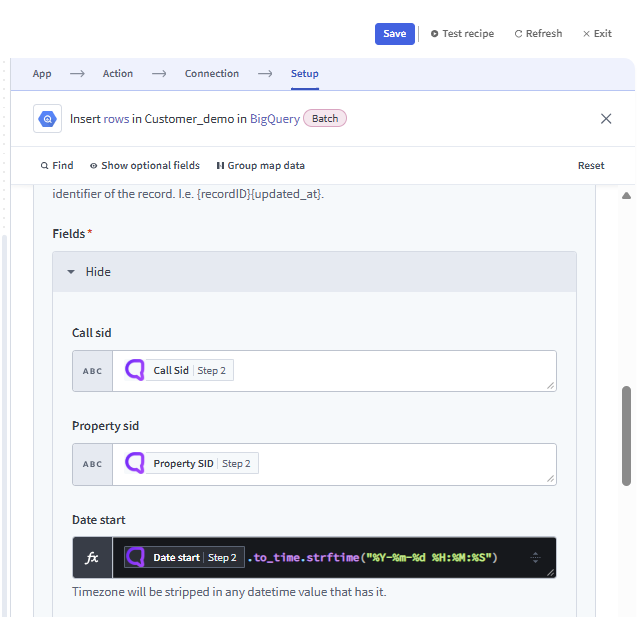
20.- Under the ‘Fields’, you will see the ‘Date Start’ box. Toggle it to ‘Formula’ and paste the following text as shown in the figure:
.to_time.strftime("%Y-%m-%d %H:%M:%S")
21.- Click ‘Save’ followed by ‘Exit’
22.- Click ‘Start Recipe’ to initiate the recipe
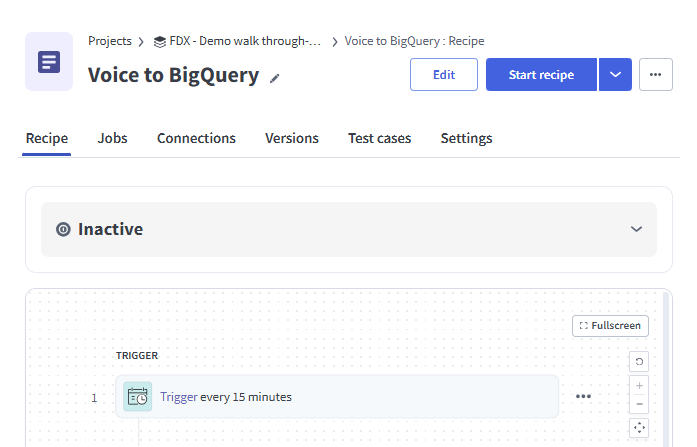
Note: the recipe is set to trigger every 15 mins by default. If no job is found, recipe will stop and run again after 15 mins. Trigger can be modified as per requirement (Reducing trigger time will consume more tasks).
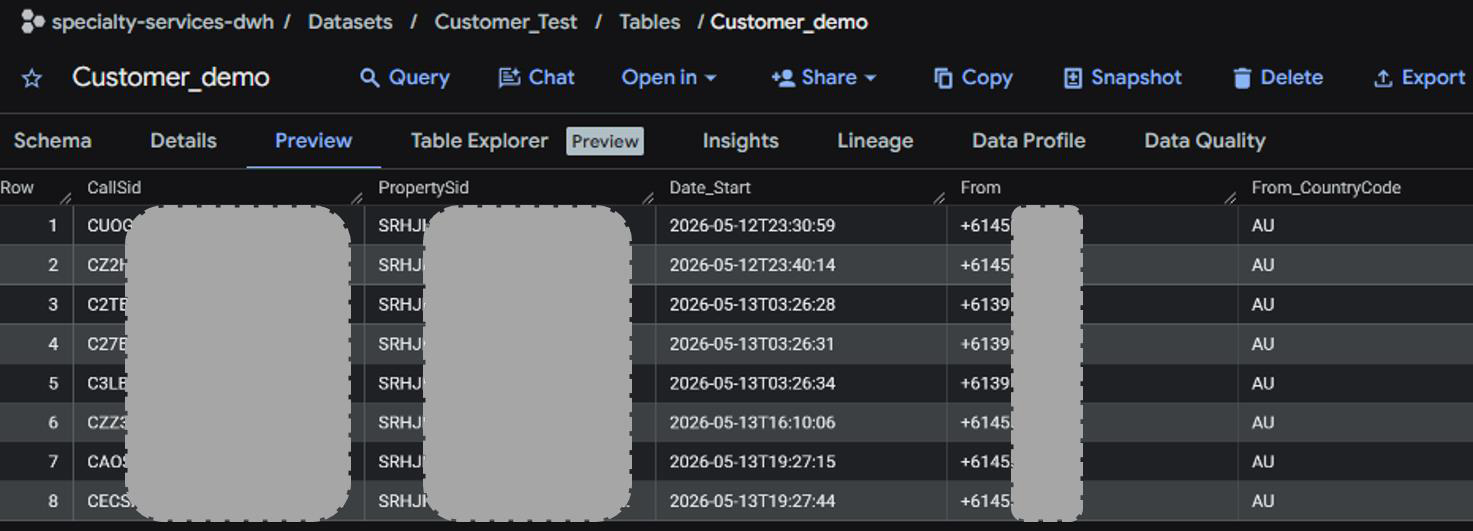
Once the recipe is started, it will query ‘inbound’ voice calls data. If inbound call data is found, it will extract it, and export it to the BigQuery table.
Go to BigQuery to and click on ’Preview’ to see the voice data exported to BigQuery from FDX
Was this article helpful?
That’s Great!
Thank you for your feedback
Sorry! We couldn't be helpful
Thank you for your feedback
Feedback sent
We appreciate your effort and will try to fix the article